In this episode of Procreate FAQs, I am going to answer your questions about the Procreate layer limit.
What is the Layer Limit on Procreate?
The layer limit on Procreate is 999 layers. This is the maximum number of layers allowed in Procreate.
I don’t think that you will ever reach that number because it would only happen in case you are working with a very low-resolution artwork and your iPad gives Procreate access to 100% of its RAM.
Typically, you’ll be working with artwork sizes that have practical applications, like for social media (3000px x 3000px) or physical prints such as 16″ x 16″, A4, A3, or A2 @300DPI.
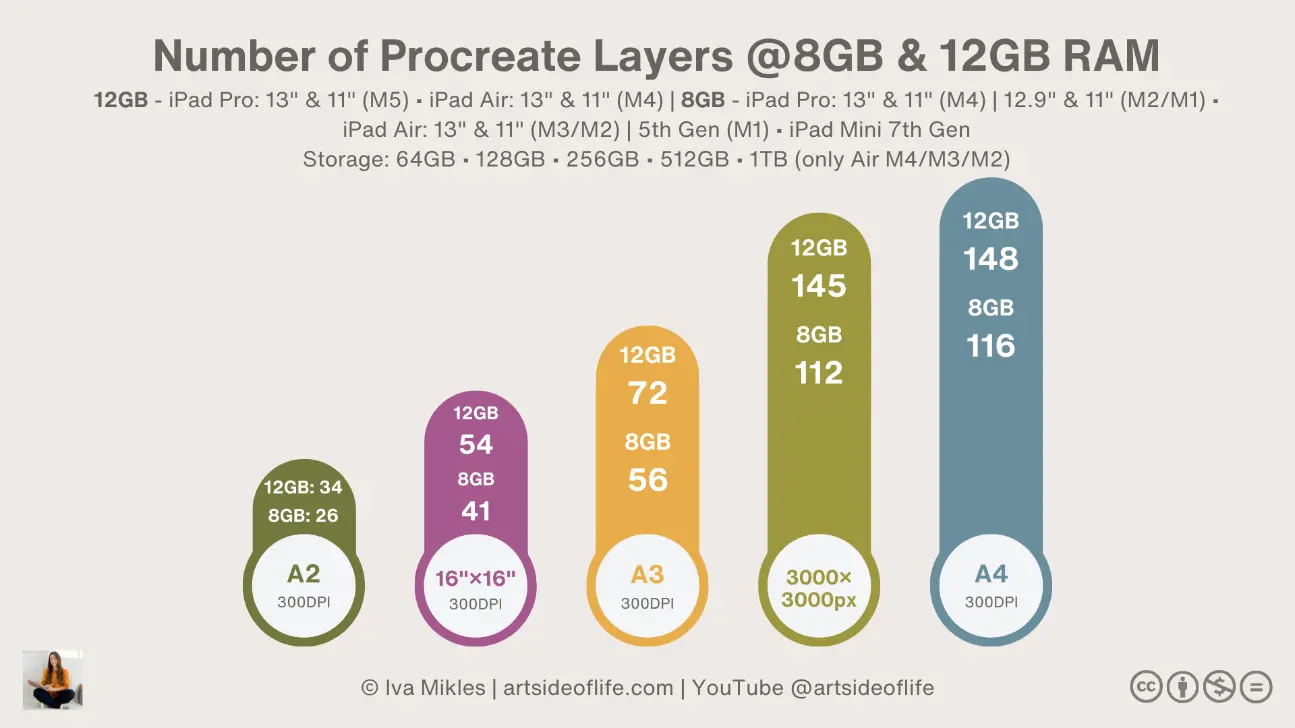
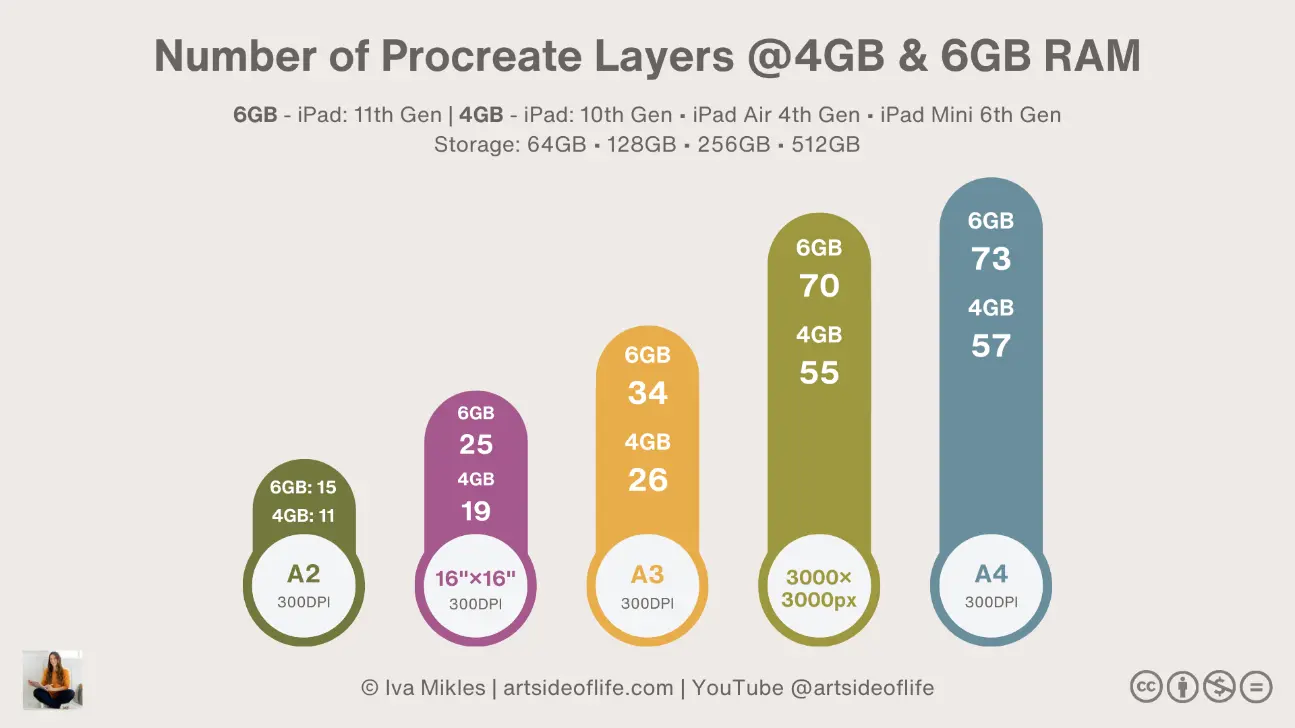
Let’s take a look at the table below to see how many Procreate layers you can expect depending on your iPad model:

🤩 Join Art Club with Iva for access to popular PROCREATE classes, workshops, creative skills practice, my drawing process, references, Procreate brushes use inspiration, and more.

Join 1000s of artists and get my custom-made Procreate brushes - 🎨 Watercolor Brush Set, 🖌️ Gouache Brush Set, ✏️ Sketching Brush Set, and more ...
Procreate Layer Limit Calculator

🤩 Grab my popular FREE Procreate Brush pack, plus color palettes, prompt lists, and more creative goodies!

| RAM and iPadOS version | iPad models | Canvas size | Number of Procreate layers |
|---|---|---|---|
| 16GB RAM** iPadOS 16.3+ iPadOS 17+ iPadOS 18+ iPadOS 26+ | iPad Pro 12.9″ iPad Pro 11″ iPad Pro 13″ M4 iPad Pro 11″ M4 🆕 iPad Pro 13″ M5 🆕 iPad Pro 11″ M5 | 3000px ⤫ 3000px 16″ ⤫ 16″ @300 DPI A4 @300DPI A3 @300DPI A2 @300DPI | 204 77 211 103 49 |
| 12GB RAM iPadOS 16.3+ iPadOS 17+ iPadOS 18+ iPadOS 26+ | 🆕 iPad Pro 13″ M5 🆕 iPad Pro 11″ M5 🆕 iPad Air 13″ M4 🆕 iPad Air 11″ M4 | 3000px ⤫ 3000px 16″ ⤫ 16″ @300 DPI A4 @300DPI A3 @300DPI A2 @300DPI | 148 54 145 72 32 |
| 8GB RAM* iPadOS 16.3+ iPadOS 17+ iPadOS 18+ iPadOS 26+ | iPad Pro 12.9″ iPad Pro 11″ iPad Air 5 10.9″ iPad Air 13″ M2 iPad Air 11″ M2 iPad Pro 13″ M4 iPad Pro 11″ M4 🆕 iPad Air 13″ M3 🆕 iPad Air 11″ M3 🆕 iPad Mini 7 8.3″ | 3000px ⤫ 3000px 16″ ⤫ 16″ @300 DPI A4 @300DPI A3 @300DPI A2 @300DPI | 112 41 116 56 26 |
| 6GB RAM iPadOS 16.3+ iPadOS 17+ iPadOS 18+ iPadOS 26+ | 🆕 iPad 11 | 3000px ⤫ 3000px 16″ ⤫ 16″ @300 DPI A4 @300DPI A3 @300DPI A2 @300DPI | 70 25 73 34 15 |
| 4GB RAM iPadOS 16.3+ iPadOS 17+ iPadOS 18+ iPadOS 26+ | iPad Air 4 10.9″ iPad 9 10.2″ iPad 10 10.9″ iPad Mini 6 8.3″ | 3000px ⤫ 3000px 16″ ⤫ 16″ @300 DPI A4 @300DPI A3 @300DPI A2 @300DPI | 55 19 57 26 11 |
/* 8GB RAM is available in iPad Pro models with 128GB, 256GB and 512GB storage
/** 16GB RAM is available in iPad Pro models with 1TB and 2TB storage
How Do You Check How Many Layers You Have in Procreate?
To check the number of layers available for your Procreate artwork, follow my guide below:
Time needed: 2 minutes
This is a guide on how you check the number of layers you have available in your existing Procreate artwork canvas.
- Tap on the “wrench” icon and then “Canvas”
Once you tap on the wrench icon and Canvas menu, you will see the canvas settings

- Tap on the “Canvas information”
Locate the “Canvas information” menu item and tap on it.
- Tap on the “Layers” menu item
In “Canvas info,” tap on “Layers” menu item to see the “Maximum layers” on the right hand side.


How Can You Increase Your Procreate Layer Limit?
To increase your Procreate layer limit, you can do one or all of these things: combine layers, work on two or more canvases, decrease the canvas size, and work with the smallest canvas size possible.
Work on Two or More Canvases
This is a technique of increasing the number of Procreate layers suitable for all artist levels.
It works in a way that once you reach the maximum number of Procreate layers available for your canvas, you duplicated that canvas. Then you open the canvas copy, merge all the layers together, and continue drawing with a fresh limit of Procreate layers.
🛑 IMPORTANT – always make sure you duplicate the canvas because once you merge the layers, you will not be able to unmerge them again.
Combine Layers
I think combining layers (also called merging layers) is a workaround suitable for more advanced artists who already have a creative workflow because it may be confusing for beginners.
When I worked with my older iPad Pro 10.5″, I regularly had to increase the number of Procreate layers by merging some of them. I usually combine layers with details, shapes, and layers with parts of the artwork when working with clipping masks and alpha lock.
You will see me working heavily with combining layers in my class on drawing flowers in Procreate:
Work with the Smallest Canvas Size Possible
I think the technique of working with the smallest canvas size possible is a technique suitable for more advanced artists. It requires that you are efficient with your choices and you are aware of the tradeoffs
To maximize the number of Procreate layers, you can always choose to work with the canvas size in px, inches, centimeters, and millimeters, and at DPI, that is the minimum required for your end product – e.g., digital screen, wall art, pattern, social media, etc.
This is the technique I automatically use for my Procreate artworks.
Decrease the Canvas Size
Decreasing your canvas size is a valid technique, but personally, I don’t recommend it because it can pixelate your artwork. So be careful when experimenting with it.
You can do it by going to “Crop & Resize” in the Canvas menu. See the image guide below:


Join 1000s of artists and get my custom-made Procreate brushes - 🎨 Watercolor Brush Set, 🖌️ Gouache Brush Set, ✏️ Sketching Brush Set, and more ...
Why Does Procreate Limit Layers?
Procreate limits the number of layers because each layer requires iPad’s computational power to function smoothly without slowing down or crashing.
The discussion about Procreate layer limits has been going on since Procreate gained widespread popularity among digital artists.
This has naturally impacted me too, because, for example, on my first iPad Pro 10.5″, I had much fewer layers than I can work with on my iPad Pro 12.9″. The number of available layers was one of the reasons I wanted to upgrade!
Before I got my current iPad Pro 12.9″, I tried to find out why Procreate limits layers and if I can do anything about it. This is what I found out:

Procreate Has Limited Access to Your iPad’s RAM
Procreate will never have full access to your iPad’s RAM.
I think that is only natural because your iPad has to run operating system tasks that ensure that your iPad doesn’t slow down or crash while you are using it. And then, if you have “memory-thirsty” apps running in the background, then your iPad’s RAM has to serve those too.
Procreate’s access to your iPads RAM is determined by the iPadOS version you have on your iPad.
The good news is that since iPadOS 16+, iPadOS17+ and iPadOS 18+, the amount of RAM available to Procreate App has increased significantly. So if you have iPad which can run those iPadOS systems, then you are in luck with a much higher number of Procreate layers! Find out which iPads are compatible with Procreate and iPadOS versions in my post about What iPads support Procreate!
Procreate Limits Layers to Ensure an Awesome Drawing Experience
Procreate was created by artists for artists, so it makes total sense they want us to have the best possible drawing experience there is.
Working with the limited access to your iPad’s RAM, the Procreate makers had to ensure the app runs smoothly in any event. And one of the ways to limit the number of layers.
Why is that?
When you create a new layer, Procreate stores all the information associated with that layer in your iPads memory – size, colors, blending modes, Procreate brush strokes, and so on. The more layers you add, the more memory Procreate uses, which can lead to instability and crashes.
By setting a layer limit, Procreate ensures that the app runs smoothly and doesn’t crash unexpectedly, even when you are working on complex artworks.
Procreate Encourages Efficient Workflow
The efficient workflow is the creative reason why Procreate limits the number of layers.
By setting a limit on the number of Procreate layers, the makers encourage us to make conscious decisions about our artistic choices.
I actually welcome this reason because it motivates me to be more intentional, focusing on the quality and composition of my work rather than getting lost in an endless stack of layers.
So, while it may seem restrictive at first, I think the layer limit in Procreate actually serves a purpose. It helps optimize performance, encourages efficient workflow, and ensures accessibility for artists of all levels.
Remember, while layer limits can be frustrating, they’re ultimately in place to ensure that you have the best possible experience when using Procreate. With a little creativity and careful layer management, you can create stunning artworks without ever hitting the layer limit.
What Determines Your Procreate Layer Limit?
There are 3 things that determine your Procreate layer limit: your iPad’s RAM, your canvas size, and your canvas DPI.
Your iPad’s RAM
As I explained above, Procreate will never have full access to your iPad’s for Procreate RAM.
How much RAM access Procreate has depends on the iPad version you have installed. You are in the best if you have iiPadOS 16+ or 17+. Apple optimized those operating systems to be more generous in RAM allocation to the apps.
Obviously, the more RAM your iPad has, the better the number of Procreate layers. 16GB you get with 1TB or 2TB iPad Pro 13″ and 11″ M4/M5, iPad Pro 12.9″ and iPad Pro 11″ (M2/M1) is the best you can get. But because of the price, I think these iPads are really only suitable for professional artists and designers.
If you are an advanced artist with a comfortable budget, aim to get at least 8GB with, for example, iPad Pro models or iPad Air models.
If you are an artist looking for iPad for Procreate on a budget, then get some of the newer iPad models with 4GB of RAM.


Your Canvas Size
As you could see in the table above, the bigger your canvas size, the fewer Procreate layers you will have available. This is because of the bigger surface area Procreate has to work with and, thus, more computational power and memory it needs to employ.
I am usually working with these canvas sizes: 3000px ⤫ 3000px, 16″ ⤫ 16″ @300 DPI, A4 @300DPI, A3 @300DPI, and A2 @300DPI.
Your Canvas DPI
In my decade of professionally working with Procreate, I’ve noticed two things:
- When you make art for the digital screen (e.g., social media, digital downloads, software clients, etc.) and work in pixels, the bigger the canvas dimensions in pixels, the fewer layers you get. DPI doesn’t play any role in your Procreate layer limit
- When you make art for print, then both canvas dimensions (in inches, centimeters, or millimeters) and the DPI determine your Procreate layer limit. The bigger the dimensions and more DPI you use, the fewer Procreate layers you get
For print, I use the standard 300DPI.
I hope my guide has helped you answer your questions about Procreate layer limit and how to increase it, and you will have a lot of fun drawing in Procreate.
Happy Drawing!

Hi, I am Iva (rhymes with “viva”). I am a full-time self-taught artist behind Art Side of Life® and a Top Teacher on Skillshare. I have 15 years of experience in the creative field as a concept designer, illustrator, art director, and now freelance artist, content creator, and art instructor. My goal is to help you get your creative groove on with Procreate and make awesome art through practical classes, tutorials, Procreate brushes, and guides on art tools, supplies and resources. About me »


